AI image generators have become much easier to use, but there is still one problem: getting the image you actually imagined.
You can write a detailed prompt, wait for the result, and still end up with the wrong layout, awkward text, or a design that looks nothing like what you had in mind.
This is where Ideogram becomes interesting.
Ideogram is an AI-powered generative media platform designed around visual creation, with a strong focus on prompt fidelity, typography, editing, and design workflows. The platform now includes Ideogram 4.0 and 4.5 models, creative apps, API access, and tools for more advanced production workflows. Ideogram
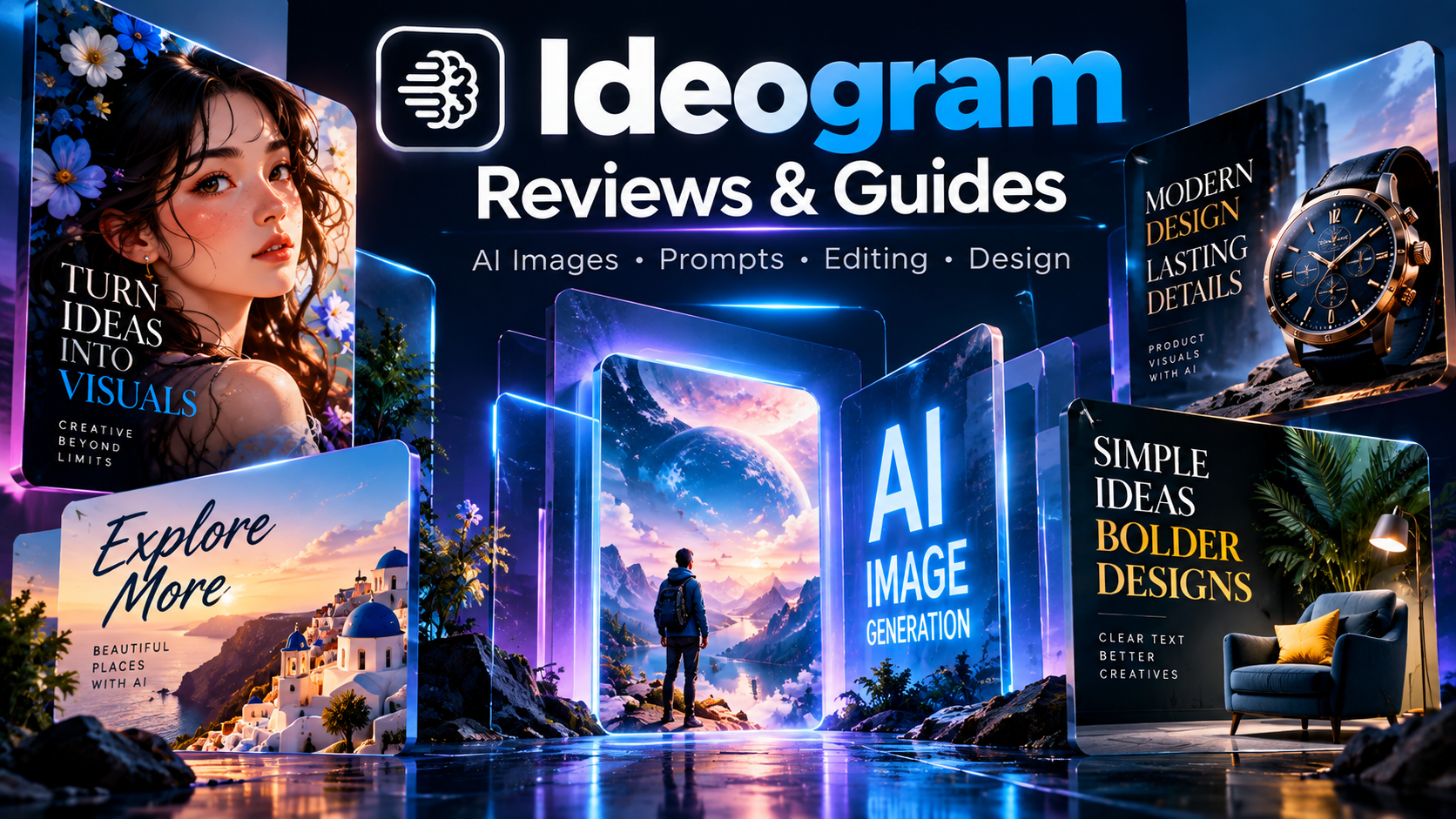
In these Ideogram Reviews & Guides, I’ll explain what Ideogram does, where it can be useful, how to write better prompts, what its latest models offer, and some common mistakes beginners should avoid.
The goal isn’t simply to say that Ideogram is “good.”
The more useful question is:
What can you realistically use Ideogram for, and how can you get better results from it?
What Is Ideogram?
Ideogram is a generative media platform that lets users create and work with visual content using AI.
It started primarily as an AI image-generation tool, but the platform has expanded into a broader creative workspace. Ideogram currently describes its platform around three main areas: Ideogram Creative, Ideogram API, and Ideogram Agents. Ideogram
The Creative side is designed for creating, editing, and iterating on visual assets.
The API is aimed at developers and production workflows.
The Agents/MCP side allows compatible AI assistants and agent tools to interact with Ideogram for tasks such as generating, editing, and organizing visual assets. Ideogram
That makes Ideogram useful for more than simply typing:
“Create a beautiful image.”
You can build a complete workflow around the generated asset.
Why Ideogram Gets Attention
One of the areas where Ideogram has historically stood out is text inside images.
Think about designs such as:
- Posters
- Social media graphics
- Product advertisements
- Event banners
- Book covers
- Logos and branding concepts
- Marketing creatives
- Typography-based artwork
- Promotional graphics
These types of images are different from simply generating a landscape or portrait.
The AI has to understand both the visual composition and the written content.
Ideogram’s current platform emphasizes crystal-clear type, prompt fidelity, and reliable editing. Its latest model lineup includes Ideogram 4.5 and Ideogram 4.0. Ideogram
That makes it particularly relevant for people who create graphics rather than only artistic images.
Ideogram 4.0 and 4.5
Ideogram’s current model lineup includes Ideogram 4.5, Ideogram 4.0, Ideogram 3.0, and P-Image-Ideogram, along with custom image models. Ideogram
Ideogram 4.0 was released in June 2026 as an open-weight foundation model. Ideogram describes it as a 9.3-billion-parameter model with a vision-language encoder and structured prompting capabilities. Ideogram
The company positions 4.0 around areas such as:
- Typography
- Layout
- Prompt following
- Brand-oriented visual work
- Structured generation
- Customization
- Production workflows
Ideogram 4.5 is positioned as the company’s more capable model, with improved prompt fidelity, readable type, and editing that aims to preserve the user’s intent through revisions. Ideogram
For most casual users, you don’t need to understand the underlying model architecture.
The important thing is understanding what you want to create.
What Can You Create With Ideogram?
This is where Ideogram becomes practical.
You can use it for a wide range of visual projects.
1. Social Media Graphics
If you manage Facebook, Instagram, Pinterest, or other social platforms, you can use AI-generated graphics for:
- Educational posts
- Promotional designs
- Quote graphics
- Product announcements
- Campaign visuals
- Event announcements
- Thumbnail concepts
For example, instead of starting with a blank Canva canvas, you can ask Ideogram to create a concept for:
“A clean professional social media graphic about AI productivity, white background, blue accents, modern typography, large headline, minimal layout.”
You can then refine the result.
2. Posters and Promotional Designs
Ideogram can also be useful for poster concepts.
For example:
“Modern technology conference poster, headline ‘AI FOR BUSINESS’, dark futuristic background, clean white typography, professional corporate layout, subtle blue lighting.”
This gives you a starting point instead of designing everything from scratch.
The exact result will depend on the model, prompt, and settings, so you should still review the output carefully.
3. Product Mockups
Another useful application is creating product concepts and mockups.
You might want to visualize:
- Packaging
- Bottles
- Boxes
- Product displays
- Promotional scenes
- Lifestyle photography concepts
For example:
“Premium black wireless headphones displayed on a clean white desk, soft studio lighting, modern technology advertisement, realistic product photography.”
This can be useful during the concept stage before producing a final commercial asset.
4. Logos and Branding Concepts
Ideogram can also help with early branding ideas.
You can experiment with:
- Business names
- Typography
- Visual identity concepts
- Color combinations
- Badge designs
- Logo directions
However, there is an important distinction.
An AI-generated logo concept is not automatically a finished trademark-ready brand identity.
You should check originality, trademark issues, typography, and licensing requirements before using a design commercially.
Use AI to explore ideas first, then refine the final identity professionally.
5. Book Covers and Editorial Designs
Another interesting use case is cover design.
For example:
“Minimal business book cover, title ‘BUILD BETTER SYSTEMS’, white background, bold black typography, subtle blue geometric pattern, professional publishing design.”
This type of prompt gives you a visual direction that can later be refined.
Ideogram’s emphasis on typography makes this kind of work particularly relevant to the platform. Ideogram
Ideogram Prompting: The Part That Matters Most
A common beginner mistake is thinking that a longer prompt automatically produces a better image.
It doesn’t.
A useful prompt should tell the model what actually matters.
For example:
“A man working on a laptop.”
This is simple, but it leaves many decisions open.
You could instead specify:
“Professional freelancer working at a modern desk with a laptop, natural window light, clean home office, realistic photography, neutral colors, medium shot, editorial business photography.”
Now the model has more useful information.
You have specified:
- Subject
- Environment
- Lighting
- Style
- Color
- Camera framing
That’s generally more useful than adding random adjectives.
A Simple Prompt Formula
For beginners, try this structure:
Subject + Action + Environment + Style + Lighting + Composition + Important Text
For example:
Subject: Young designer
Action: Working on a laptop
Environment: Modern creative studio
Style: Photorealistic
Lighting: Soft natural light
Composition: Wide editorial shot
Text: “CREATIVE WORKFLOW”
Then turn those elements into a natural prompt.
This gives you much more control than simply writing:
“Make it beautiful and professional.”
Ideogram and Structured Prompts
One interesting development with Ideogram 4.0 is its focus on structured prompting.
Ideogram’s own documentation explains that 4.0 was trained using structured JSON captions. This does not mean beginners have to write programming code for every image. Instead, structured information can help describe elements such as text, layout, color, and style more precisely. Ideogram
This becomes useful when your image needs several specific elements.
For example, instead of one long paragraph, you can think about your request in sections:
- Subject
- Layout
- Typography
- Color palette
- Lighting
- Background
- Style
That mental structure alone can improve your prompting.
Don’t Forget Image Editing
Generating an image is only the first step.
A good workflow often looks like this:
Generate → Review → Edit → Refine → Export
Ideogram’s current platform is built around creating, editing, and iterating in one visual workspace. Ideogram
This matters because your first generation may have:
- The wrong composition
- A distracting object
- Incorrect spacing
- An unwanted background element
- A design element that needs changing
Instead of starting over every time, an editing workflow can save time.
Ideogram for Businesses
Ideogram can also be useful beyond personal experimentation.
Businesses can use AI-generated visual concepts for:
- Marketing campaigns
- Product concepts
- Social media
- Advertising ideas
- Presentation graphics
- Brand exploration
- Creative testing
Ideogram’s API supports image generation and other workflows such as editing, background removal, text-layer editing, custom models, and creative automation. Ideogram
This is especially relevant for teams that want to integrate image generation into an existing application or automated workflow.
Ideogram API
Developers can use the Ideogram API instead of working only through the website.
The API provides programmatic access to image generation and other visual capabilities. Ideogram’s documentation currently lists Ideogram 4.0 as one of its generation endpoints, along with other model options. Ideogram
This can be useful for applications such as:
- Automated image generation
- Marketing tools
- Design platforms
- Content management systems
- Internal creative tools
- Product visualization systems
For example, a company could build a system where a user enters a product description and the application automatically generates several visual concepts.
Ideogram MCP and AI Agents
Another newer feature worth mentioning is Ideogram’s MCP support.
MCP allows compatible AI clients to interact with Ideogram through connected workflows.
According to Ideogram, supported clients can use its MCP server for tasks such as generating images, editing images, creating collections, uploading assets, and training models. Ideogram
This changes the workflow from:
Prompt → Image
to something closer to:
Idea → AI assistant → Ideogram → Edit → Organize → Final assets
For people building more automated creative workflows, this is an important development.
P-Image-Ideogram
Ideogram also offers P-Image-Ideogram, a model family focused on balancing image quality, speed, and cost.
Ideogram describes it as a fast image-generation option for high-volume production and iteration. Its current documentation lists multiple quality levels and 1K/2K generation options. Ideogram
This can be useful when you don’t need the maximum-quality generation for every single draft.
For example:
Draft ideas → Fast generation → Select the best concept → Higher-quality final generation
That approach can reduce unnecessary iterations.
Ideogram for Content Creators
If you’re a blogger, YouTuber, social media creator, or marketer, there are several practical ways to use Ideogram.
Blog featured images
Create an original visual around the topic of your article.
If you’re also exploring AI tools for writing, research, and productivity, check out our Claude AI Reviews and Guides for another practical look at a popular AI platform.
YouTube thumbnails
Experiment with different layouts and visual concepts.
Facebook posts
Create attention-grabbing educational graphics.
Instagram content
Generate backgrounds, concepts, and visual themes.
Pinterest graphics
Create vertical promotional designs around articles or products.
The important point is to treat AI as part of the workflow rather than expecting one prompt to produce the final design every time.
Common Ideogram Mistakes
Mistake 1: Writing vague prompts
“Make a cool AI image.”
This gives the model too much freedom.
Give it a clear subject, environment, style, and composition.
Mistake 2: Adding too many unnecessary details
The opposite problem also happens.
Some prompts become huge blocks of instructions where the most important requirement gets buried.
Start with the important elements.
Then add detail only where it improves the result.
Mistake 3: Expecting the first generation to be perfect
AI image generation is iterative.
Your first result is often a starting point.
Generate several variations, identify what works, and refine the prompt.
Mistake 4: Ignoring composition
People often focus entirely on the subject.
But composition matters just as much.
Think about:
- Close-up or wide shot?
- Subject left or right?
- Empty space for text?
- Portrait or landscape?
- Centered or asymmetrical?
- Background simple or detailed?
These decisions can make a major difference.
Is Ideogram Free?
Ideogram offers different ways to access its technology, and the exact pricing and allowances can change.
There is also an important distinction between using the hosted Ideogram platform and using the open-weight models under their applicable licenses.
Ideogram’s current licensing information says its open-weight release has a non-commercial license for research, evaluation, prototyping, and personal projects, while commercial self-hosting is covered by a separate commercial license. Ideogram
For commercial projects, don’t assume that every access method has identical terms.
Always check the current license and terms before using generated material in a business workflow.
Can You Use Ideogram Images Commercially?
This question needs a little care.
Ideogram’s licensing information says users can use outputs commercially subject to third-party rights and its Acceptable Use Policy. It also distinguishes between hosted usage and the licensing terms for self-hosted open weights. Ideogram
So before using an image commercially, consider:
- Your Ideogram plan
- The applicable license
- Third-party trademarks
- Copyright
- Recognizable people
- Brand assets
- Commercial usage requirements
An AI-generated image can still contain elements that create legal or practical issues.
My Practical Workflow for Ideogram
If you’re just getting started, don’t make the process complicated.
Try this workflow:
Step 1: Decide what you actually need
Don’t open the tool without knowing the goal.
Ask:
“Am I creating a blog image, advertisement, social post, product concept, or artwork?”
Step 2: Write a basic prompt
Describe the main subject and purpose.
Step 3: Add visual direction
Specify:
- Style
- Lighting
- Composition
- Color
- Aspect ratio
Step 4: Generate variations
Don’t immediately choose the first result.
Compare several versions.
Step 5: Identify the problem
Ask:
- Is the text wrong?
- Is the composition weak?
- Is the background too busy?
- Is the subject positioned incorrectly?
Step 6: Refine the prompt
Change the part that caused the problem.
Step 7: Edit the selected image
Use the available editing workflow instead of repeatedly starting from zero.
Step 8: Check the final asset
Before publishing, check:
- Spelling
- Layout
- Faces
- Hands
- Logos
- Brand elements
- Copyright/trademark concerns
- Resolution
This final check is especially important for business use.
Ideogram vs Other AI Image Generators
There isn’t one AI image generator that is perfect for every task.
Different tools can be better suited to different workflows.
Ideogram is particularly relevant when your project involves typography, layouts, marketing graphics, posters, and design-oriented image generation. Its current platform also extends into editing, APIs, agents, and production workflows. Ideogram
If your priority is simply creating artistic images, you may compare it with other image-generation platforms.
If your project needs readable text and design composition, Ideogram is worth testing.
The best approach is to compare actual outputs for your specific use case rather than relying only on general reviews.
Tips for Better Ideogram Results
Here are some simple tips that can improve your workflow:
- Start with a clear objective.
- Describe the subject before adding decoration.
- Specify composition when layout matters.
- Use short, meaningful instructions.
- Mention important text explicitly.
- Generate multiple variations.
- Use editing instead of constantly restarting.
- Keep important elements away from the edges when designing for social media.
- Check spelling manually before publishing.
- Review commercial-use and third-party rights before using an image commercially.
Frequently Asked Questions
What is Ideogram?
Ideogram is a generative media platform for creating and working with visual content using AI. Its current platform includes image models, creative apps, APIs, and agent-based workflows. Ideogram
Is Ideogram good for text in images?
Typography is one of the areas Ideogram emphasizes. Its current platform specifically highlights clear type and prompt fidelity, making it relevant for posters, social graphics, advertisements, and other designs containing text. Ideogram
What is Ideogram 4.0?
Ideogram 4.0 is an open-weight image foundation model released in June 2026. Ideogram describes it as a 9.3B-parameter model with a vision-language encoder and structured prompting approach. Ideogram
Can beginners use Ideogram?
Yes. You don’t need programming knowledge to use the main creative interface. Beginners can start with ordinary text prompts and gradually learn more advanced prompting and editing techniques.
Can Ideogram create social media graphics?
Yes. It can be used to create concepts and visual assets for social media, advertising, promotional posts, and other design-oriented content.
Does Ideogram have an API?
Yes. Ideogram provides an API for image generation and additional workflows including editing, background removal, text-layer editing, and custom models. Ideogram
Can Ideogram be used commercially?
Commercial use depends on the applicable product, plan, and license. Ideogram’s licensing information provides commercial terms for its hosted outputs and separate terms for its open-weight models. Ideogram
Final Thoughts
Ideogram has grown beyond being just another text-to-image generator.
Its current ecosystem combines AI image generation, typography, editing, creative apps, APIs, custom models, and agent workflows. Ideogram
For someone creating social media graphics, posters, marketing visuals, product concepts, or other design-heavy content, those capabilities can be useful.
But the tool itself isn’t the whole workflow.
The quality of your result still depends heavily on how clearly you communicate the idea, how you handle composition, and how willing you are to refine the first generation.
A good starting point is simple:
Clear idea → clear prompt → generate → review → refine → edit → publish
That’s a much more reliable approach than expecting one prompt to produce a perfect image.
I’ll immediately grab your rss feed as I can’t find your e-mail subscription link or newsletter service. Do you have any? Kindly let me know in order that I could subscribe. Thanks.
Thanks for pointing that out! We currently have the RSS feed available, and we’re working on adding a proper email subscription option as well. I’ll make sure the subscription link is clearly available once it’s set up. Thanks for your interest in TechToolSphere!